In WPF making a read-only text area is easy, add a TextBlock, and then set the Text property. However, now imagine that you would like to enable your users to select the read-only text--a very common scenario--that's easy too. Create a TextBox, and then toggle the IsReadOnly property to True, job done, right?
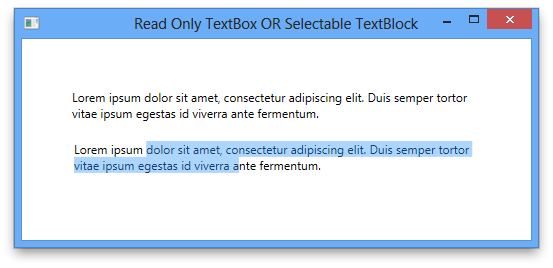
Depending on why you want the TextBox to be read-only this may not be enough. Typically I want a read-only TextBox not because I want TextBox where the text cannot be edited, but what I actually want is a TextBlock where the text can be selected; the difference between these two might not be obvious, so take a look at the following screen shot:

Unfortunately that is only a superficial fix--the illusion is ruined the moment you move your mouse over the TextBox; annoyingly the border returns but this time with the highlight colour. There is no toggle on the TextBox control to turn off that annoying behaviour :(

The good news is that this is not the end of the road; there are a couple of ways to fix this problem. The easiest I have found is to replace the control template for the TextBox. That may sound drastic, and not normally something I would encourage you to do to just change something as simple as this; the reason being the moment you change a template you now 'own' that code, and the less code you own the better.
So why is the TextBox different in this case? Well, first I need to explain a little bit about how control templates actually work, how the behaviour and look join together.
WPF controls, when first unveiled back in back in 2006, were described as 'lookless' controls. What that actually means is that the look of the control is divorced from the implementation of the control. By way of an example, take a Button control: the only behaviour required for a Button to be a Button is the Click event--beyond that everything else is considered the look.
WPF provides the mechanism for this approach to control building by using templates, specifically a ControlTemplate. Templates define the look for all sorts of things in WPF, be it a control, a piece of data, or a panel. Templates can be defined imperically but are typically defined declaratively, by using XAML. The behaviour is defined by using managed code--C# for example.
This all sounds lovely and gives a wonderful separation of concerns, however, there is an implmentation detail that requires an a element of pragmatism to make this system work in the real world. For some controls it is possible for the imperative code to know nothing of the declarative code and work cleanly through events and triggers; however, the moment a control gets even mildly complex there is a need for the imperative and declarative worlds to meet. When this is required the control author uses a naming convention by setting the x:Name attribute to PART_nnn; in the case of the TextBox the surface on which the text is to be rendered this element is called: PART_ContentHost. This then enables the imperative element of the control to reference to the visual and work its magic.
The upshot of all this for our scenario is this: so long as our template contains an element with the x:Name value of PART_ContentHost, we're golden:

Here I have chosen a Border element, but you can use any Decorator or ScrollViewer derived elements. The result should be indistinguishable from a TextBlock with the exception that the text can be selected, as shown below:
If you have any comments, questions, flames, or enhancements I would love to hear from you. In the meantime, think deeply and enjoy.